Ultimate IPTV Iowa Setup Guide 2026: Complete Installation Tutorial
Quick Overview
- Device compatibility and requirements
- Step-by-step installation for all devices
- Recommended apps and settings
- Troubleshooting common issues
- Optimizing your streaming experience
What You Need Before Starting
Before diving into the setup process, ensure you have:
- Active IPTV Iowa subscription - Get your free trial if you haven't already
- Stable internet connection - Minimum 25 Mbps for HD, 50+ Mbps for 4K
- Compatible streaming device - Firestick, Smart TV, Android box, etc.
- Login credentials - Sent to your email after activation
Setting Up on Amazon Firestick
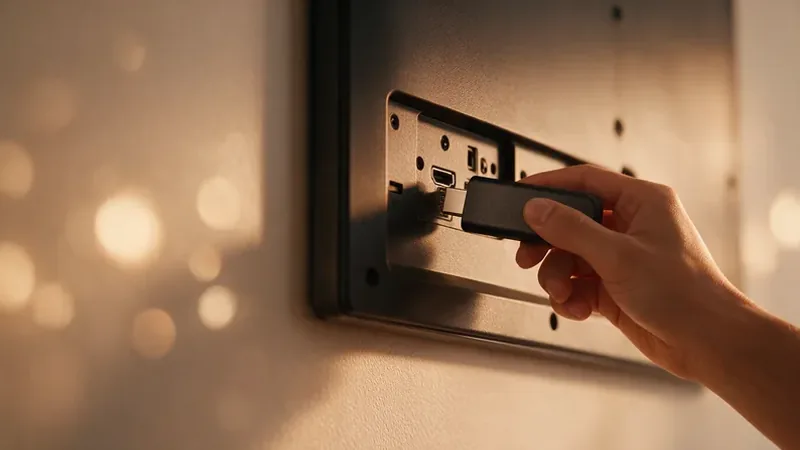
The Amazon Firestick is one of the most popular devices for IPTV Iowa streaming. Here's how to get started:
Step 1: Enable Unknown Sources
- Go to Settings > My Fire TV > Developer Options
- Enable "Apps from Unknown Sources"
- Enable "ADB Debugging" (optional but recommended)
Step 2: Install Downloader App
- From the home screen, go to Search
- Type "Downloader" and select the orange Downloader app
- Click Download and wait for installation
Step 3: Install Your IPTV App
We recommend using IPTV Smarters Pro or TiviMate for the best experience:
- Open Downloader
- Enter the app download URL provided in your welcome email
- Click Go and wait for download
- Install the app when prompted
Step 4: Configure Your Subscription
- Open the installed IPTV app
- Select "Xtream Codes API" or "M3U URL" based on your preference
- Enter your IPTV Iowa credentials
- Wait for channels to load
Setting Up on Smart TV (via Firestick)
Samsung Smart TV
- Press the Smart Hub button on your remote
- Go to Apps
- Search for "Smart IPTV" or "IPTV Smarters"
- Install and open the app
- Enter your IPTV Iowa credentials
LG Smart TV
- Press the Home button
- Go to LG Content Store
- Search for "Smart IPTV"
- Install and configure with your credentials
Setting Up on Android Devices
Android phones, tablets, and TV boxes offer the most flexibility:
- Open Google Play Store
- Search for "IPTV Smarters Pro" or "TiviMate"
- Install your preferred app
- Open the app and enter your login details
Recommended Apps Comparison
| App | Best For | Features | Rating |
|---|---|---|---|
| TiviMate | Power users | EPG, recording, multi-view | ⭐⭐⭐⭐⭐ |
| IPTV Smarters | Beginners | Easy setup, clean interface | ⭐⭐⭐⭐ |
| Smart IPTV | Smart TVs | Native TV experience | ⭐⭐⭐⭐ |
| OTT Navigator | Customization | Advanced features | ⭐⭐⭐⭐ |
Optimizing Your Streaming Experience
Network Settings
- Use ethernet connection when possible for stable streaming
- Position your router close to your streaming device
- Consider a mesh WiFi system for larger homes
App Settings
- Enable hardware decoding for smoother playback
- Set buffer size to 2-3 seconds
- Choose the appropriate player (VLC, ExoPlayer)
Troubleshooting Common Issues
Buffering Problems
If you experience buffering, try these solutions:
- Check your internet speed at speedtest.net
- Restart your router and streaming device
- Lower the stream quality temporarily
- Use a wired connection instead of WiFi
Channels Not Loading
- Verify your subscription is active
- Check your login credentials
- Clear the app cache
- Reinstall the app if issues persist
Conclusion
Setting up IPTV Iowa is simple when you follow these steps. With 19,000+ channels, 4K quality, and anti-freeze technology, you'll enjoy the best streaming experience available.
Ready to get started? Try IPTV Iowa free or view our pricing plans.
Frequently Asked Questions
How long does IPTV Iowa setup take?
Most users complete setup in 5-10 minutes with our easy-to-follow guides.
Do I need a VPN for IPTV Iowa?
A VPN is optional but recommended for added privacy and security.
Can I use IPTV Iowa on multiple devices?
Yes! Choose a plan with multiple connections to stream on several devices simultaneously.